> ## Documentation Index
> Fetch the complete documentation index at: https://langtail.com/docs/llms.txt
> Use this file to discover all available pages before exploring further.
# Variables
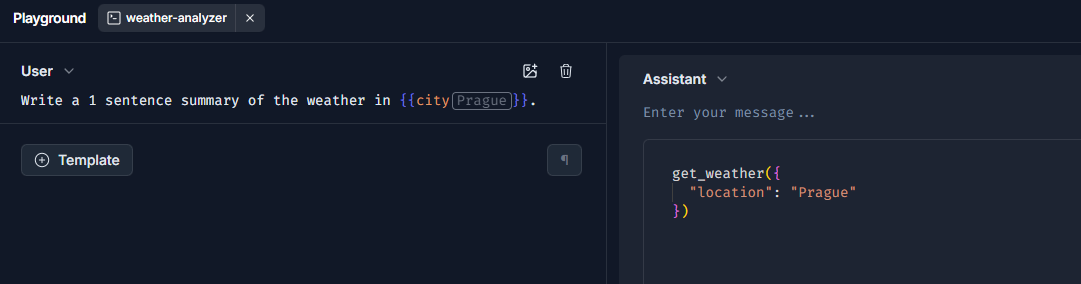 ### Working with Variables
Variables are a powerful feature in Langtail that allow you to dynamically customize your prompts and models. They enable you to create reusable components and inject context-specific information into your language models.
1. Log into Langtail and select your project.
2. Navigate to 'Prompts' to either open an existing prompt or create a new one.
3. In the 'Template' section, craft your prompt.
4. Add new variable by using curls `{{ }}`
5. Navigate to the Variables panel
6. Enter the variable value (text, number, or other data types supported by Langtail).
1. In the prompt editor, use the `{{variable_name}}` syntax to reference your variable.
2. Langtail will automatically replace the variable placeholder with its corresponding value when processing the prompt.
**Example:**
Let's create a variable called `company_name` with the value "Acme Inc." and use it in a prompt:
```
Prompt: "Welcome to {{company_name}}! How can we assist you today?"
Output: "Welcome to Acme Inc.! How can we assist you today?"
```
### Working with Variables
Variables are a powerful feature in Langtail that allow you to dynamically customize your prompts and models. They enable you to create reusable components and inject context-specific information into your language models.
1. Log into Langtail and select your project.
2. Navigate to 'Prompts' to either open an existing prompt or create a new one.
3. In the 'Template' section, craft your prompt.
4. Add new variable by using curls `{{ }}`
5. Navigate to the Variables panel
6. Enter the variable value (text, number, or other data types supported by Langtail).
1. In the prompt editor, use the `{{variable_name}}` syntax to reference your variable.
2. Langtail will automatically replace the variable placeholder with its corresponding value when processing the prompt.
**Example:**
Let's create a variable called `company_name` with the value "Acme Inc." and use it in a prompt:
```
Prompt: "Welcome to {{company_name}}! How can we assist you today?"
Output: "Welcome to Acme Inc.! How can we assist you today?"
```